Custom Sticker Designer Guide: How to Create Your Own Decal
Use the online designer to set your own text, font, size and vinyl colour, then check the live preview before the design goes into your basket.
7 min read
In this guide
What the custom designer makes
The designer cuts German marine vinyl into the letters you type. It is for personalised boat and jetski lettering, not a general artwork editor. You can design:
- Boat registration stickers
- Jetski registration stickers
- Boat name stickers
- Outline stickers for a registration or a boat name
A normal order is a pair, one sticker for each side. Vinyl lettering has no printed background. Full-colour printed stickers are marked “Coming soon” and cannot be ordered from the designer yet.
Registration height and placement still have to suit your state rules. This guide shows how to use the designer. The measuring guide and placement guide cover the legal side.
Getting started with the custom designer
Open the designer from the product page, or use one of these links:
- Choose the product: boat rego, jetski rego, boat name, or outline lettering.
- The page opens on the preview and step 1, Text & Font.
- Move through Style, Size, Colour and Add-ons. Boat name uses Width in place of the registration size step.
- Use Back and Next, or the numbered steps, to move around. Show tips and Show measurements can be turned off.
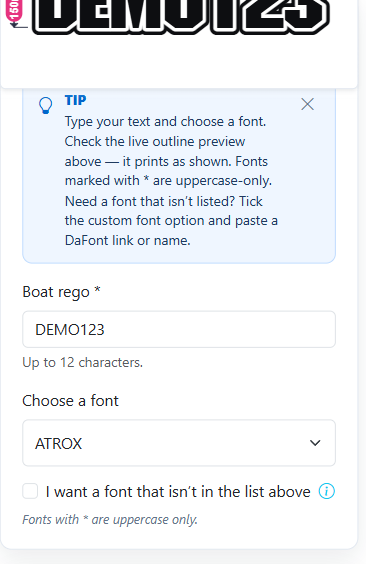
On a phone the same steps stack under the preview. The text field, font picker and tip sit in one column, so scroll to move from the preview to the controls.
Entering your custom text
Type the registration or name in the text field. The preview and the font sample both update. A green tick shows when the text is accepted.
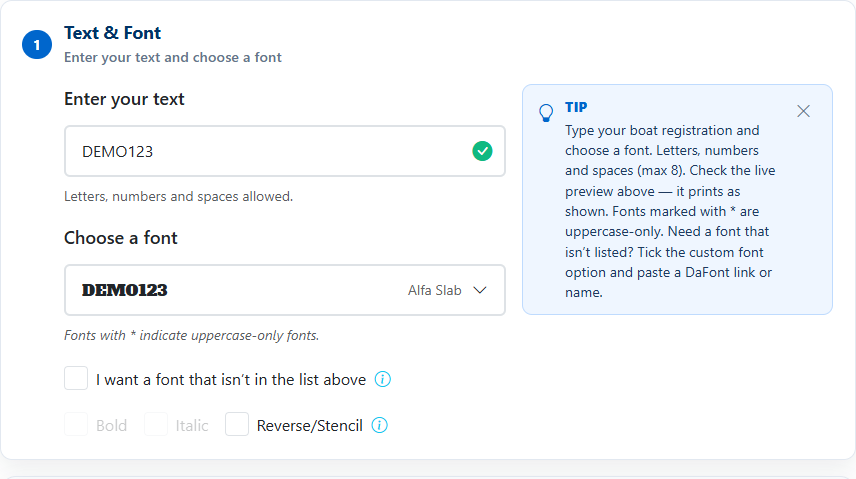
- Boat rego designer: letters, numbers and spaces, up to 8 characters.
- Jetski designer: the same five steps, for a personal watercraft registration.
- Outline registration designer: the text field allows up to 12 characters.
- Boat name designer: letters, numbers, spaces and most punctuation. See boat name lettering for how the size works.
Three optional ticks sit under the font:
- Custom font. Tick “I want a font that isn’t in the list above” and paste a DaFont link or the font name. The preview can show a stand-in until that font is prepared after the order.
- Bold and Italic. These add a style on top of the chosen font. Some fonts do not offer them.
- Reverse/Stencil. This is mainly for inflatables, so the openings can be painted through. The designer asks you to confirm before it is applied. The cut line in the summary changes from Standard to Reverse/Stencil.
Choosing your font
Open “Choose a font”. Your current text is drawn in each font, so you can compare styles without guessing from the font name. Use the search box to filter the list. Fonts are grouped, and a star means that font is uppercase only.
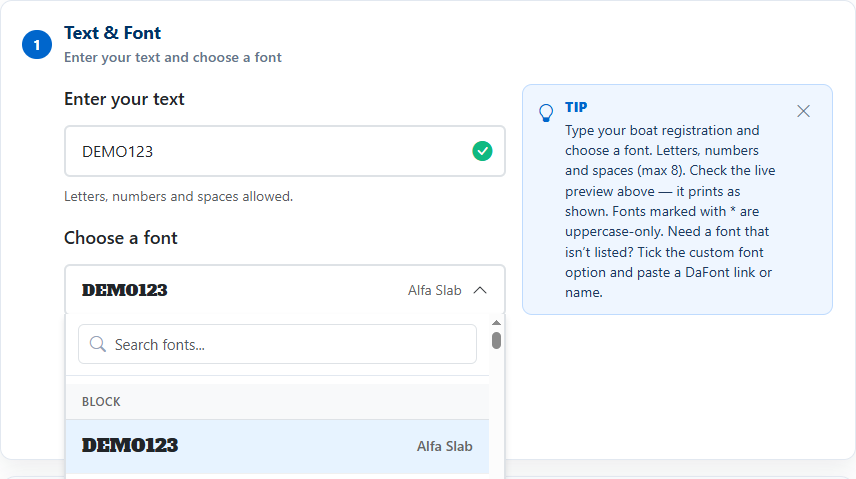
The menu continues below the first row. Scroll inside it to see the other families. The selected name, such as Alfa Slab, is also repeated in the order summary.
Setting your sticker dimensions
On a registration designer, step 3 is Select Size. Each preset is the character height by the overall sticker width, and the price beside it is for one pair (both sides). The preview’s measurement labels use those two numbers.
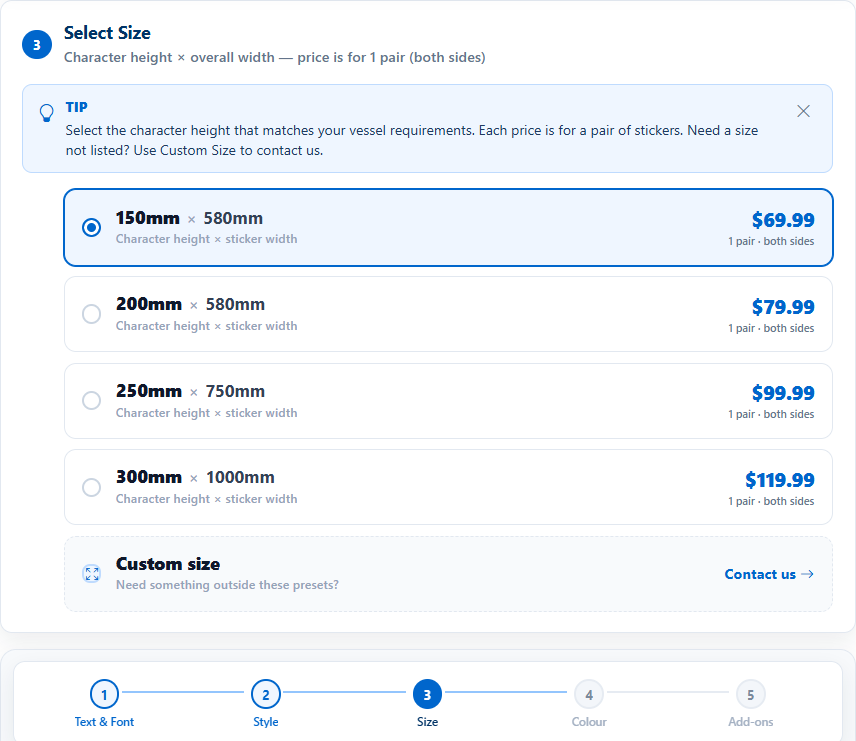
Pick the character height that suits the vessel and your state rules. If none of the presets fit, Custom size opens a contact option rather than letting you type an unsupported size.
Boat name sizing works the other way around: you choose the width, and the designer calculates the height. That is covered under boat name lettering.
Selecting colours
Step 4 is the vinyl colour. The letters are cut from that coloured vinyl. They are not full-colour print. The preview updates when you pick a swatch.
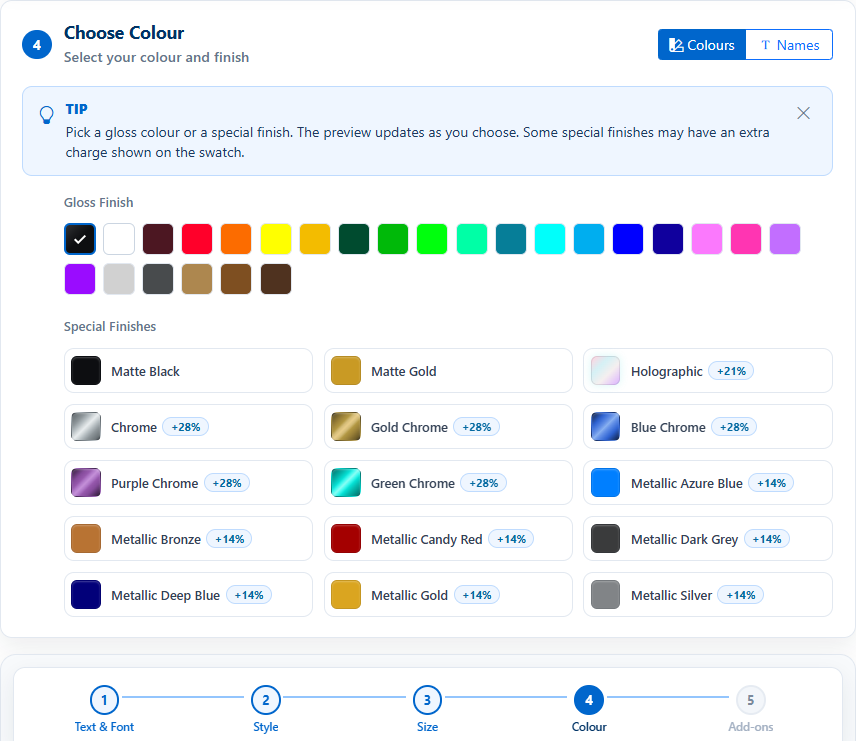
- Gloss finish: the solid colour swatches. Gloss Black is the example used in the summary below.
- Special finishes: matte, holographic, chrome and metallic. An extra is printed on the swatch when that finish costs more. On this screen, holographic showed +21%, the chrome finishes showed +28%, and the metallic finishes showed +14%. Matte Black and Matte Gold did not show a percentage.
- Names: the same colours in a named list, if the swatches are hard to tell apart.
For contrast advice on a hull colour, see choosing boat sticker colours. The designer price updates with the finish you select. Check it again before you add the design.
Adding an outline
Step 2, Choose Style, is where vinyl and outline lettering split.
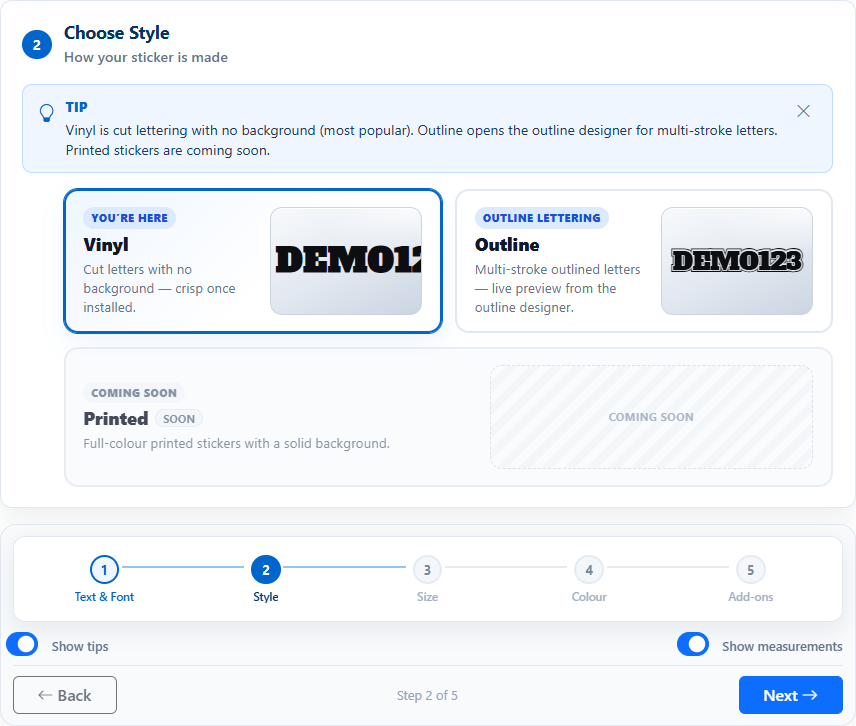
- Vinyl cuts solid letters and numbers. There is no background shape behind them.
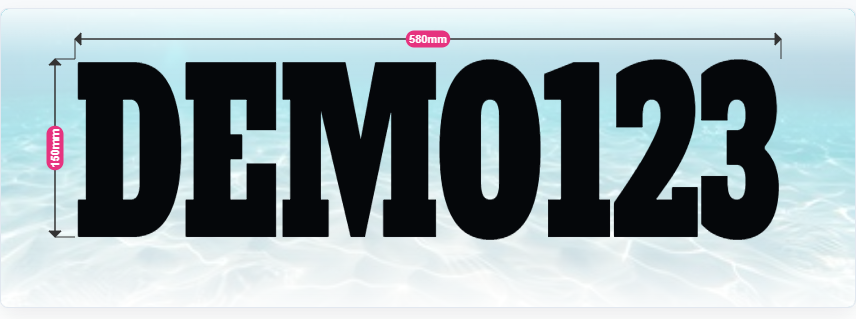
- Outline opens the outline designer and previews multi-stroke letters. Set the text, font, size and letter colour on that page. The sample below is DEMO123 at 150 mm by 580 mm.
- Printed is labelled coming soon. Leave it and use Vinyl or Outline.
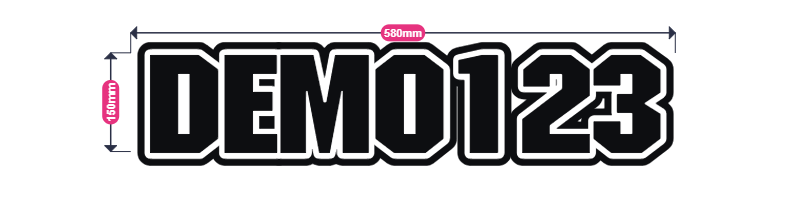
Outline designs are available for boat rego, jetski rego and boat names. The outline registration field allows up to 12 characters, which is longer than the 8-character solid rego designer.
Creating a boat name decal
The boat name designer is a separate page. Type the name, such as SEA BREEZE. Letters, numbers, spaces and most punctuation are accepted. You choose the overall width, and the designer calculates the character height so the words fit.
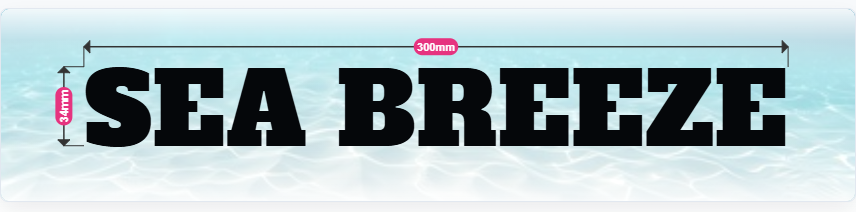
Read both labels before you order. The width is the length along the hull. The height is the letter height the designer fitted, not a second measurement you type in.
Previewing and checking your design
The preview is the cut lettering, drawn at the size you selected. Before you leave the designer, check:
- Spelling, including spaces. A registration is limited to the character count on that designer.
- The font, and whether a starred font has forced capitals.
- Character height and overall width on the preview. Turn Show measurements back on if the labels are hidden.
- The vinyl colour, and any special-finish extra on the swatch.
- Vinyl or outline, and Bold, Italic or Reverse/Stencil if you ticked one.
Preview limits: the water background is not part of the sticker. A custom font can appear as a stand-in until it is prepared after the order. The measurement labels are the designer’s size for this text and font. They are the figures to compare with your hull and with your state character-height rules.
Adding the design to the basket
Step 5 is optional. You can skip it and the sticker still adds to the basket.
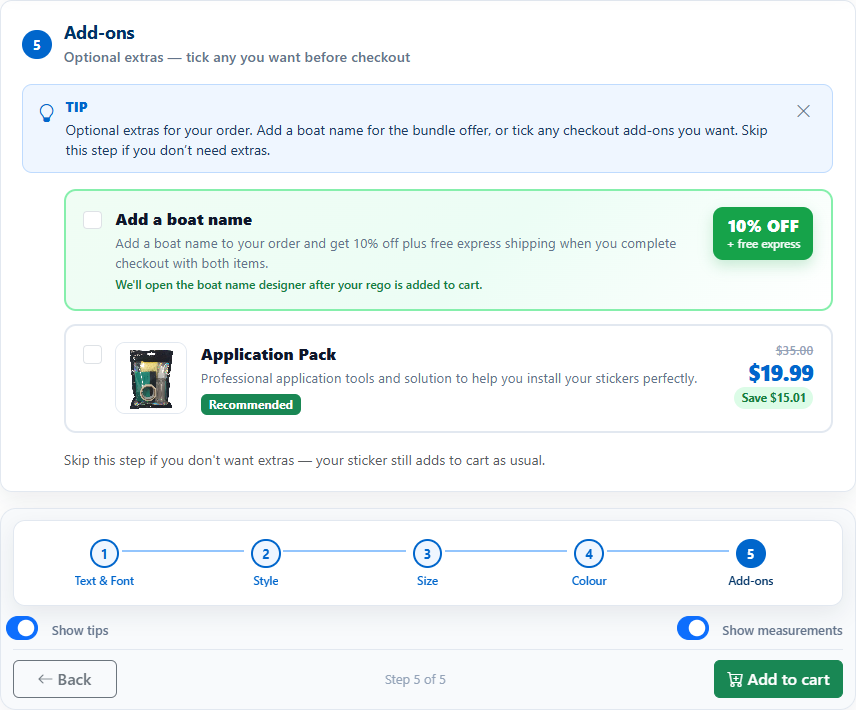
- Add a boat name: optional. The offer shown here is 10% off plus free express shipping when the registration and the boat name are both in the checkout. Choosing it opens the boat name designer after the registration is added.
- Application pack: optional tools for fitting the stickers. It was listed at $19.99, reduced from $35, when this guide was prepared. Use the price on the button if a sale has changed it.
The summary beside the steps is the last check. It lists the font, finish, colour, size, style and cut, then the quantity and price.
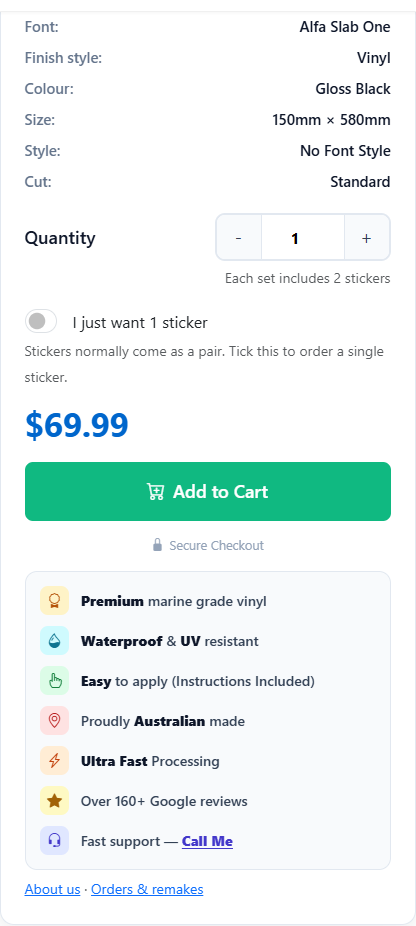
- Confirm the summary matches the preview.
- Leave the quantity as a pair, or tick “I just want 1 sticker” if you only need one.
- Press Add to Cart. The design is then in the basket for checkout. The basket lists the text, font, colour and size, and you can remove a line there.
There is no separate edit button on the basket line. If something is wrong, remove the line and go through the designer again. If you come back in the same browser, the designer may ask you to continue a design kept on that device or start fresh. That is not a design saved to your account.
After the stickers arrive, the how to apply guide covers surface prep and the squeegee.
Common questions and troubleshooting
How do I create a custom sticker?
Open the boat rego designer, the jetski designer, the boat name designer, or an outline designer. Enter the text, choose a font, size and colour, check the preview, then add it to the basket.
Can I choose my own font?
Yes. Search the font list and compare the previews of your own text. Fonts marked with a star are uppercase only. A font that is not listed can be requested with a DaFont link or font name. The preview may use a stand-in for that font until it is prepared after you order.
Can I change the size of my design?
Yes. A registration uses the height-by-width presets, or Custom size if you need something else. A boat name uses the width you pick, and the designer calculates the height. The preview labels are the size that will be cut for that text and font.
Can I add an outline to my text?
Yes. Choose Outline on the style step, or open the outline designer directly. It previews multi-stroke letters and uses its own text, font, size and colour steps. Printed stickers are still marked coming soon.
Are the stickers printed or cut from vinyl?
They are cut from coloured vinyl. Vinyl style is solid cut letters with no background. Outline style is multi-stroke cut lettering. The preview background is not printed.
How do I check the size before ordering?
Use the pink measurement labels on the preview and the size line in the summary. For a registration, the first number is the character height and the second is the overall width. For a boat name, you set the width and the height is the fitted letter height.
What should I do if the designer is not responding?
Refresh the page. Close the tip if it covers a button. Use Reset all to clear the current design. If a registration will not accept more characters, it has reached the limit for that designer: 8 on the solid boat rego designer, and 12 on the outline registration designer. If the preview still does not update, call 0424 216 548.
Can I edit my design before placing an order?
Yes, while you are still in the designer. After Add to Cart, change it by removing that basket line and designing it again. Returning in the same browser may offer to continue a design stored on that device. Adding it to the basket is what carries the design through to checkout.
Related Guides
Ready to design your decal?
Open the designer, enter your registration or boat name, and the preview updates as you choose the font, size and colour.